Shopify is a widely used e-commerce platform for online and retail shopping. By integrating Shopify with Infinite Sales, you can enhance your e-commerce capabilities in several ways, including workflows, and the use of Shopify-specific custom values. Store owners can easily import and sync their products, collections, contacts, orders, and transactions from Shopify to Infinite Sales. This simplifies the entire store migration process, enabling seamless integration and allowing users to benefit from advanced marketing tools, such as triggers for orders and payments. Follow these steps to integrate Shopify with Infinite Sales:
Step 1: Create or Login To A Shopify Account

Step 2: Enable Private App Development (if already enabled, skip to Step 3.)
- Once logged in to your Shopify store, navigate to “Apps” from your dashboard.

- Click “Develop Apps” in the top right of the screen
- Click “Allow custom app development”

- NOTE: IF you already enabled the private app development, you’ll be directed straight to the create/develop apps button and won’t need to re-accept the terms/permissions.
Step 3: Create Your Private App
- Click to Create an App

- Enter a name for your app such as “my App” or “Sally’s Shopify Store”, and enter your email address in the appropriate field.

- Click “Configure Admin API scopes” to configure Admin API integration.

- Scroll down to “Orders” and enable at least “read_orders” access
- Scroll down to “Products” and enable at least “read_products” access
- Click the “Save” button on the top right.
- Click the “Install app” button on the top right.
- Click “Install” in the popup window that appears.
Your app is now ready to be integrated.
Step 4: Retrieve the Admin API Access Token for Integration
- After the installation is complete, you will be able to find the Admin API Access Token under the API Credentials Section.
- Click “Reveal Token Once” to get access.
- Copy the “Admin API access token” by clicking on the clipboard icon or highlighting it all and using the control+c or command+c keyboard shortcut ono your computer. Keep this password copied, as you’ll need it in the next step.
Step 5: Connecting Shopify to Infinite Sales
- Back in Infinite Sales, navigate to Settings > Integrations.
- Click “Connect” under Shopify.

- In the popup window, paste the previously copied Admin API token and type out your Shopify Store URL.

- Choose which elements to import (products, collections, contacts, etc.)

- Decide what data should sync automatically in the future. The options for syncing include Contacts, Orders, Transactions, Order submitted trigger, Payment received trigger, Products, and Collections.

- Click Save to finalize the process. The import and sync process may take some time to complete.
Important Notes:
- Taxes are not included when products are imported or synced, meaning tax information won’t be mapped over.
- Each order will have only one transaction reflected in Infinite Sales.
- Orders synced from Shopify will have their status set as either “Completed” or “Cancelled” based on the Shopify data.
- When contacts are merged in Shopify, the primary contact will be updated in Infinite Sales.
- If no modifications are made to Shopify’s default SEO settings, the SEO data will be recorded as null when synced to Infinite Sales.
Products imported from Shopify to Infinite Sales:
Collections imported from Shopify to Infinite Sales:
Removing Pre-Existing E-Commerce Integrations
The ability to remove pre-existing e-commerce integrations addresses the issue of integrating a single e-commerce store with multiple locations, providing a solution for users who couldn’t re-integrate their store if it was already connected to another location. Users can remove an existing integration and re-integrate the same store to a different location if needed.
One significant benefit of this feature is the improved flexibility and control over store integrations, allowing seamless management across various locations.
To use this feature, enter the access token and store name;
if the store is already integrated, an option will appear to remove the current integration and re-integrate it to the desired location.

Shopify Orders in Email Campaign – Conversion Metrics (Email ROI for Shopify Orders)
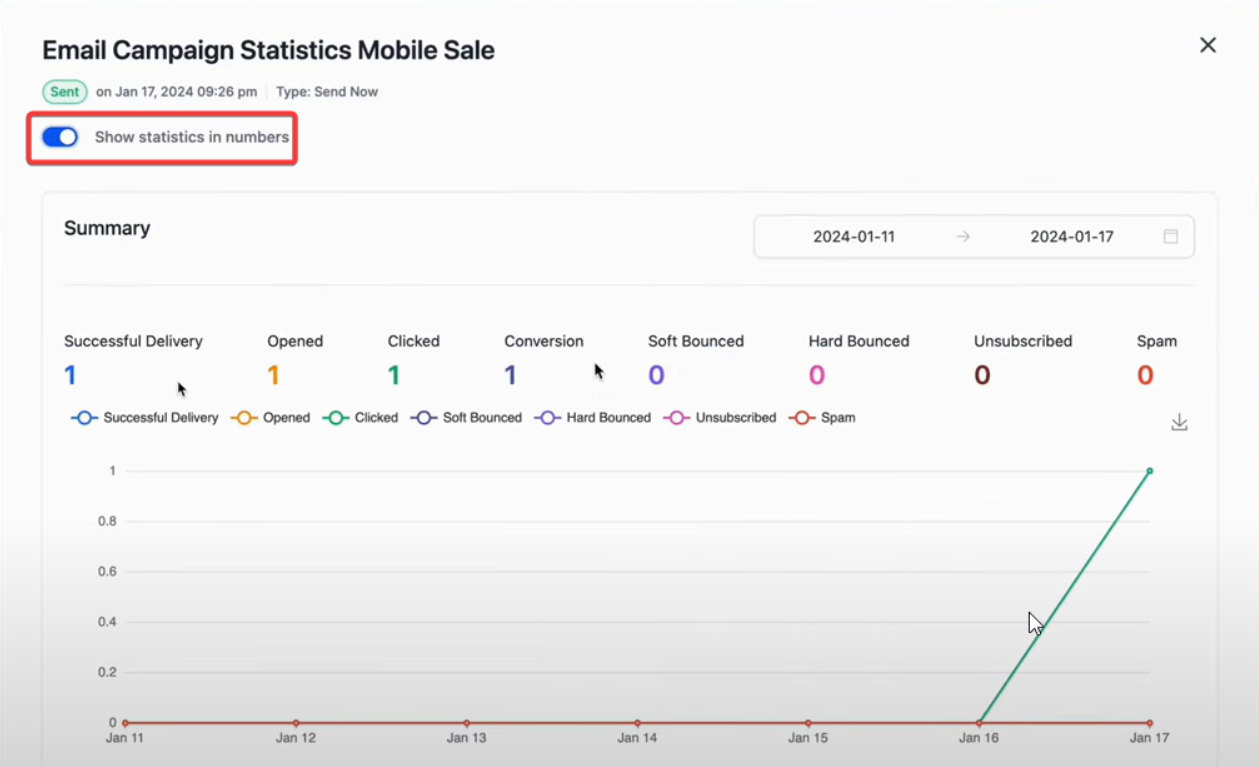
Campaign conversion metrics, including Shopify orders, provide a comprehensive view of how email campaigns drive sales by incorporating Shopify order data into the conversion metrics.
How to Use
Step 1: Sync Shopify Orders
- Integrate Shopify with Infinite Sales:
- If you haven’t already integrated your Shopify store, navigate to Settings > Integrations.
- Follow the Shopify integration guide above to complete the setup.
Ensure the “Sync Shopify Orders” option is checked to enable order syncing.
Step 2: Navigate to Email Campaigns
- Access Email Campaign Statistics:
- Go to the Marketing section.
- Navigate to Email Campaigns.

- Select the campaign for which you want to view statistics.

Step 3: Explore Conversion Metrics
- View Revenue Attribution:
- In the Email Campaign Statistics, scroll to the “Conversion Metrics” section.
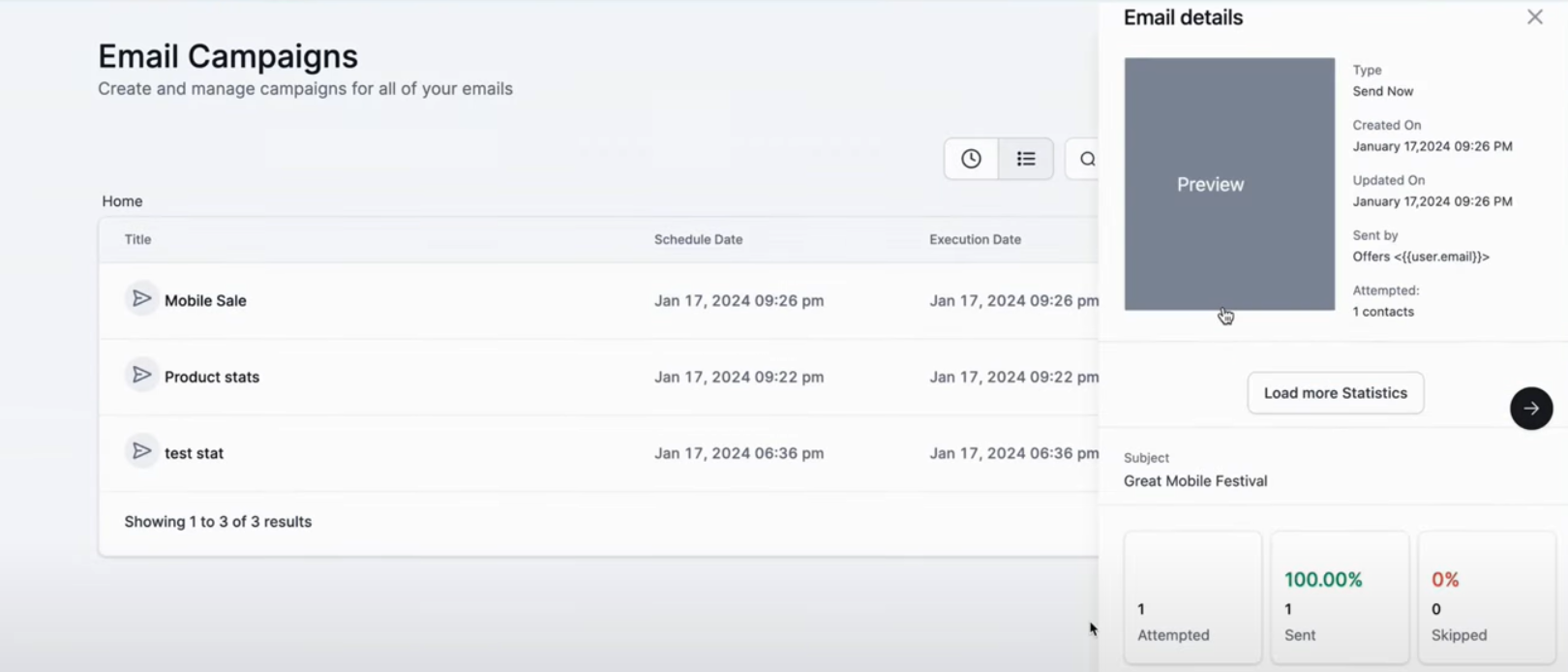
- Here, you will find detailed statistics on the revenue generated from the email campaign, now including Shopify orders.
Benefits
- Improved Accuracy: By incorporating Shopify orders, the conversion metrics provide a more complete and accurate picture of your email campaign’s effectiveness.
- Seamless Integration: Shopify orders are now visible under the Orders section, ensuring all sales data is consolidated and readily available for analysis.
- Enhanced ROI Tracking: This update allows you to show clients exactly how much revenue your email campaigns are generating, providing clear evidence of the campaign’s value.
FAQ:
- Can I re-import data if I miss something during the initial sync? Yes, disconnect and reconnect the integration to reimport any data you missed.
- What happens to merged contacts in Shopify? The primary contact from Shopify will be updated in __CompanyName.
- Are taxes synced along with products? No, taxes are not mapped during the import process.
- Can I disable the syncing of specific elements after integration? Yes, you can manage and adjust which elements continue to sync after setup.
5. What triggers are available for automation? You can set up triggers like “Order Submitted” and “Payment Received” for enhanced automation.