Invoice settings allow you to customize the default title, terms/conditions, and notifications. This article will overview the settings menu and its options.
You can use templates instead of the default option and use the custom values in the design editor seen below:
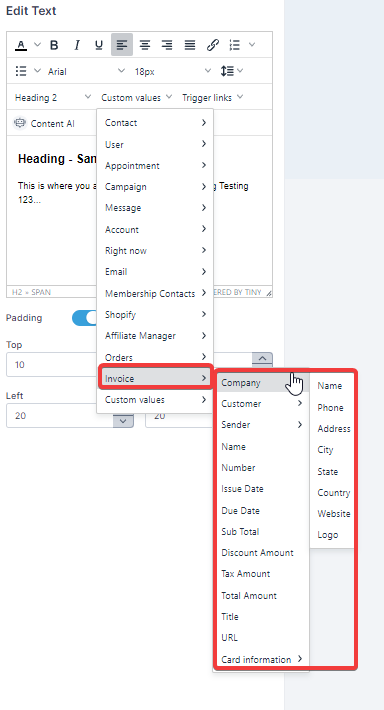
To edit your invoice settings Navigate to Payments > Invoices > Gear Icon

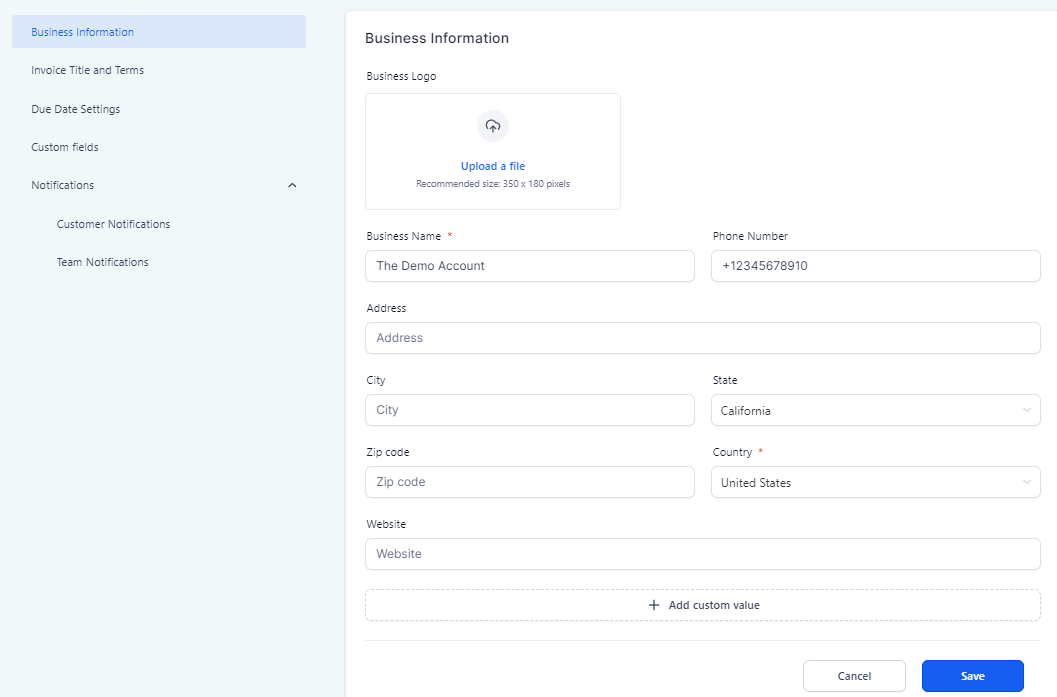
Business Information
This menu will allow you to customize the Business information such as logo, business name, address, website, and add custom values
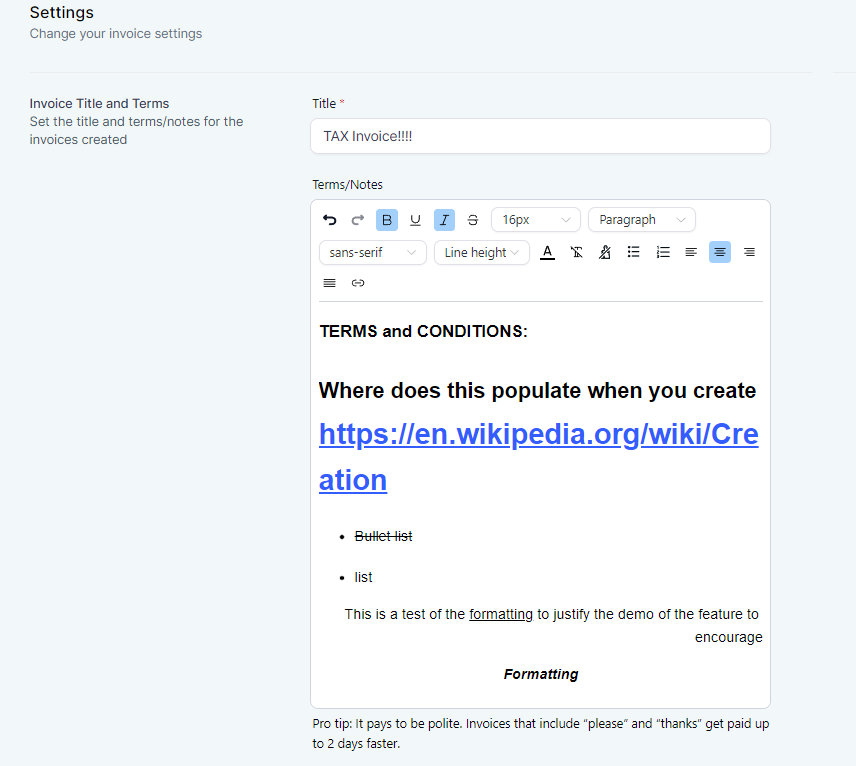
Invoice Title and Terms
Here you can set the title and the terms/notes for the invoices created. You can use various formatting options which allows for line breaks, links, and more
- Invoice Title and Terms/Notes
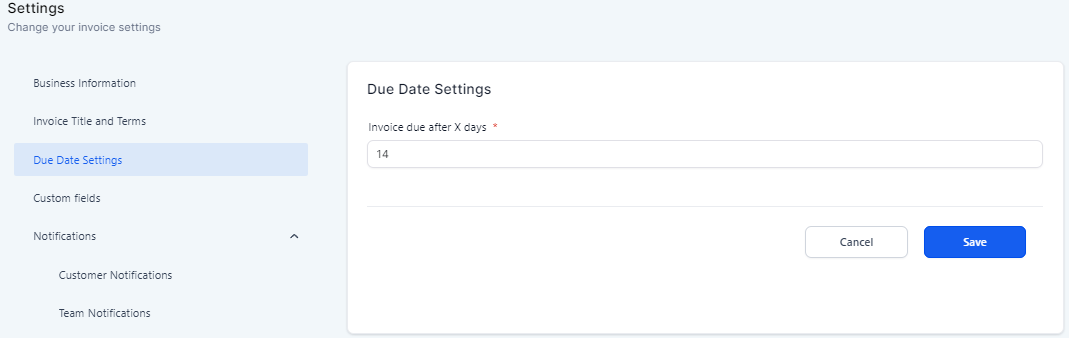
Due Date Settings
Select when the invoice is due after X amount of days
Customer Notifications
Custom Fields
Add custom fields to your preferences from this section
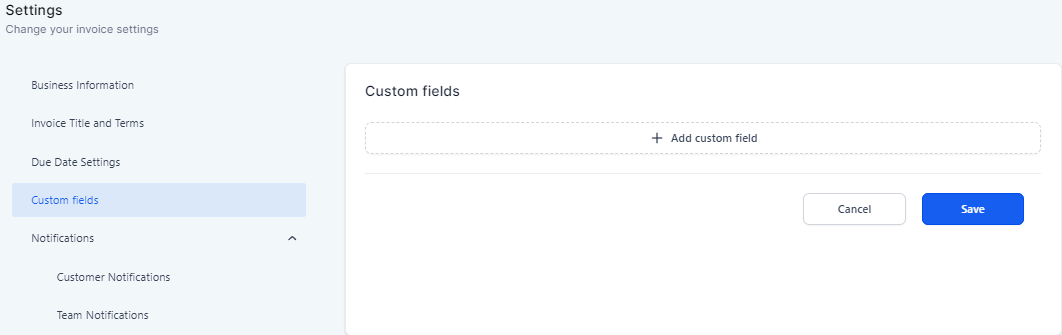
Customer Notifications
Enable or disable the different types of notifications and select custom templates or use the available default option.
- Invoice Received
- Invoice Payment Successful
- Invoice Payment Failed
- Auto Payment Information
- Auto Payment Failed
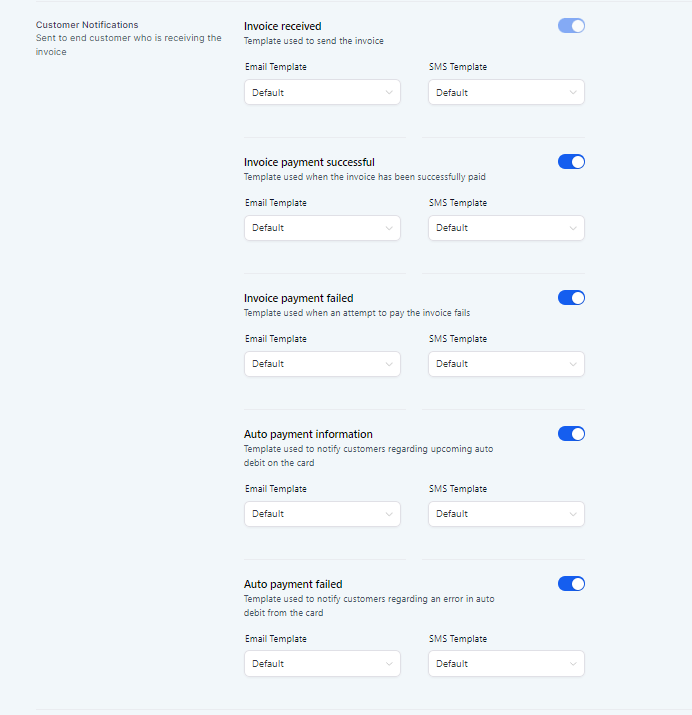
Please note: To view the default template you would need to test manually
Team Notifications
These notification are sent to the business user who sent the invoice. Toggle on or off they type of notification and select templates as desired.
- Invoice Payment Successful
- Invoice Payment Failed
- Auto Payment Failed
- Auto Payment Skipped
- The Invoice Could Not Be Sent
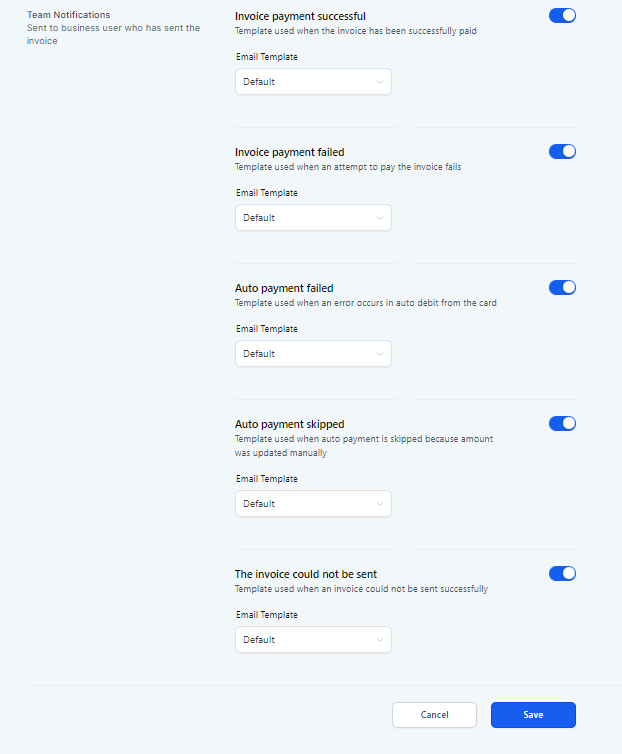
Save when finished editing your default invoice settings.