Integrating Gmail as your Email Service provider is one option for sending emails to your leads. There are a few key steps to ensure proper configuration and setup. Check them out here:
Note: Please use a VPN when trying to connect to Gmail SMTP for Users in the Philippines
Step 1: Creating your Gmail App Password
- Navigate to myaccount.google.com/security
- Click on your Google icon in the top right
- Click Manage your Google Account to ensure you’re in the correct account, if you have multiple Google accounts logged in at once.
- Click “Security” from the menu on the left-hand side
- Scroll down and click “App Passwords”
- NOTE: if there are no “App Passwords” this means your two-step verification is off in Google. You will need to turn it on to enable it, and cannot use the “Allow Less Secure Apps” option.
- Choose the correct email from the dropdown
- Type in the password
- Click “Next”
- Click “Other (Custom name)” and add a name. Type in something like SMTP/Email integration.
- Click “Generate”
- Copy the highlighted text. (You will need to paste it as the password when you integrate your Gmail as the SMTP in the next step.)
Step 2: Integrating Your Gmail Account
- Click into Infinite Sales account settings
- Navigate to “Email Services”
- Click “Add Service” in the top right corner
- Click “Select Provider”
- Choose Gmail from the dropdown list
- Paste the app password from Step 1 here.
- Click “Save”
Troubleshooting Tips and Recommended Best Practices:
If you’re using Gmail as your Email/SMTP provider, please be advised that you may experience some emails being flagged as spam or not being sent out at all.
If your provider is set to “TestEmail@Gmail.com” and in your sending configuration, if you try to use a different Gmail account like “SampleEmail@Gmail.com“, Gmail will flag it as spam.
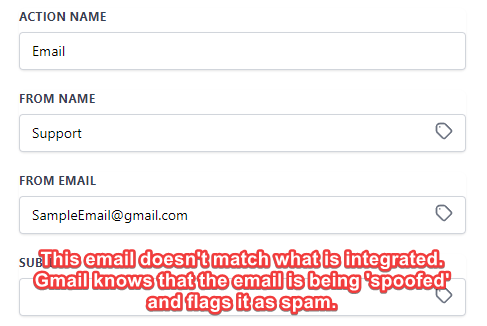
If you are going to use Gmail as your provider, use the same email address for your emails and automation so you experience deliverability issues.
Some providers have daily limits on the number of emails that can be sent. For example, current Gmail limitations allow for about 150 maximum emails daily.
Only Mailgun reports stats back to Infinite Sales. Other providers currently do not report some or all stats back into Infinite Sales.
Please use a VPN when trying to connect to Gmail for Users in the Philippines.
Important Note:
If you are using a Google Sending Domain, please, check the article called, “Setting a Dedicated Google or Yahoo Sending Email Domain”.
As of February 2024, Google and Yahoo have new requirements for their Email Domain. This will help improve deliverability, avoid ending up in spam, and increase your credibility and sender reputation. You will need to add a _dmarc record to your domain.