When using the Membership section, you can customize various settings and features to make the Membership experience work for your users exactly as you wish. You can add upsell offers to your checkout process to help maximize your profits – upselling them when they’re already making a purchase.
What is an upsell? An upsell is a simple way to add an additional offer to the purchase process for your customers. When someone completes a purchase, you can set up Media International Corp to include an upsell offer immediately after, encouraging them to make an additional purchase. (They can choose to make or decline the upsell purchase at that stage.) If they choose to make the upsell purchase, they’ll be redirected to the competition page.
Follow these steps to create and use a membership upsell:
Part 1: Creating an Upsell Offer
Step 1: Create An Upsell Offer
- Create an offer to use as your upsell.

- Save and name it as “Upsell” or “Upsell Offer” (or something similar) so you can easily find it in Step 2.
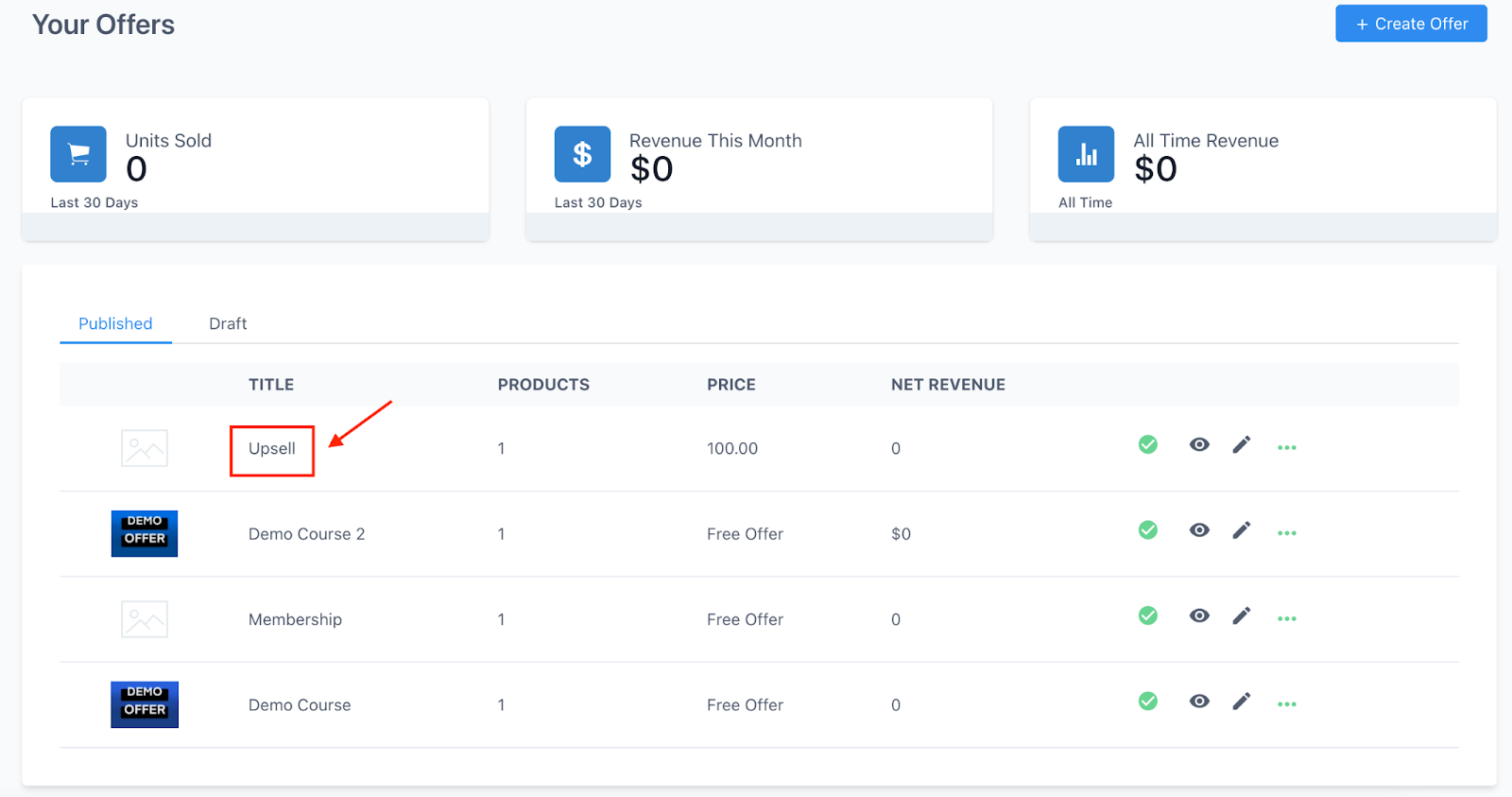
Step 2: Add the Upsell to your Existing Offer
- Navigate to the offer you wish to add the upsell to.
- Navigate to the Upsell section and click the “+ Add Upsell Offer” button.


- From the dropdown, choose the Offer you want to use as the upsell (this would be the upsell offer you created in Step 1).

- Customize the Upsell page as you wish.
- Activate and save your changes.
Part 2: Customizing, Editing, or Removing Your Upsell Checkout Page
Step 1: Customizing or Editing an Upsell page
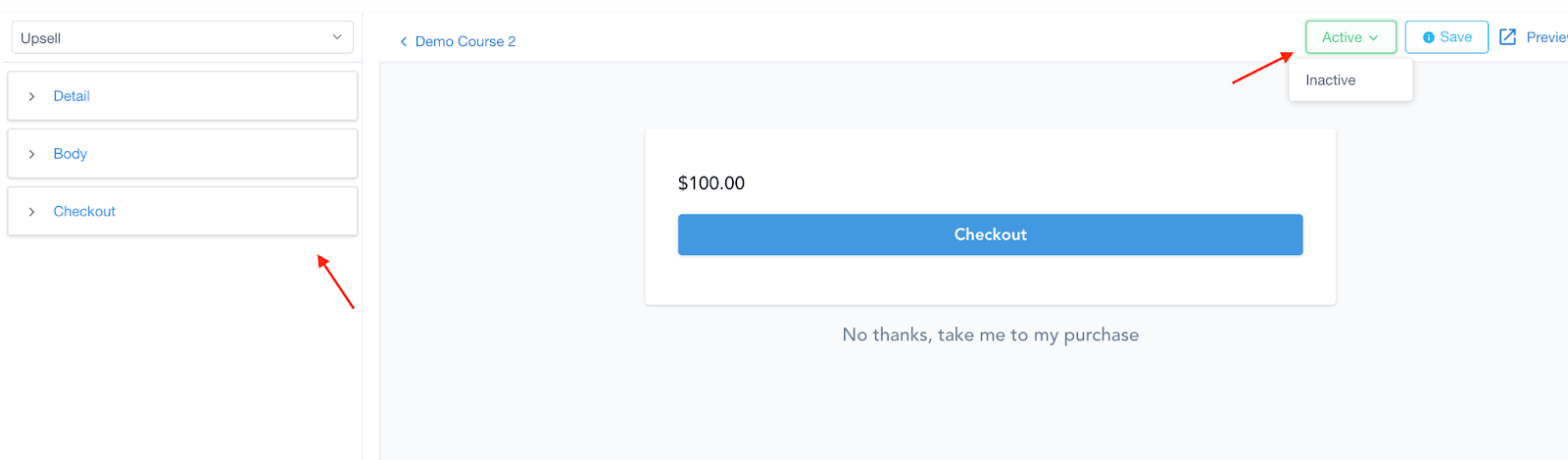
- Click the customization/edit (pencil icon) button from your offer list to access your Upsell Offer.

- Make any edits or changes you wish.
- You can apply any customizations you wish in the Checkout page by using the menu on the left hand side dropdowns.
- Save to confirm your changes.
NOTE: If you’re already within the offer that includes an Upsell, you can navigate to the Upsell section and make edits to the Upsell from within the Upsell tab. Click the edit (paint palette) icon to edit the upsell offer that’s already added within your Membership offer.

Step 2: Removing an Upsell Page
- Navigate to Offers.
- Click into the Offer you wish to remove an Upsell for.
- Click into the Upsell section.
- Click on the three dots icon next to the Upsell you want to remove.
- Select “delete” from the list to remove the Upsell offer.

Part 3: Previewing Your Upsell Page
- Click the preview (eyeball) button from your offer list. This will take you to the Offer Builder.

- This will open a new page allowing you to preview what the page looks like for your users.