Advanced conditions for Smart Lists and Tags offer powerful functionality to ensure your campaigns are always reaching the most up-to-date audience. By using these advanced conditions, you can automatically include new contacts that are added to your lists or tags between the time a campaign is scheduled and the time it is sent. This article will guide you through the key features, benefits, and steps to effectively use advanced conditions for Smart Lists and Tags, helping you optimize your campaigns for maximum reach and engagement.
NOTE: Advance Conditions will only work for Schedule, Batch, and RSS Email Campaign options.
Key Features and Benefits
- Dynamic Contact Addition: Advanced conditions automatically include new contacts added to Smart Lists or Tags after a campaign is scheduled, ensuring no new leads are missed.
- Enhanced Campaign Reach: By capturing all relevant contacts, your campaigns have a wider audience, potentially increasing engagement and results.
- Automated Updates: Save time and effort by automating the inclusion of new contacts without manually updating your lists or tags.
- Improved Campaign Accuracy: Ensure your messages reach the most accurate and complete audience at the time of sending, reflecting your latest data.
How to Use Advanced Conditions for Smart Lists
- Create a New Campaign:
- Start by creating a new campaign using the pre-built templates available in your account in Marketing>emails>campaigns
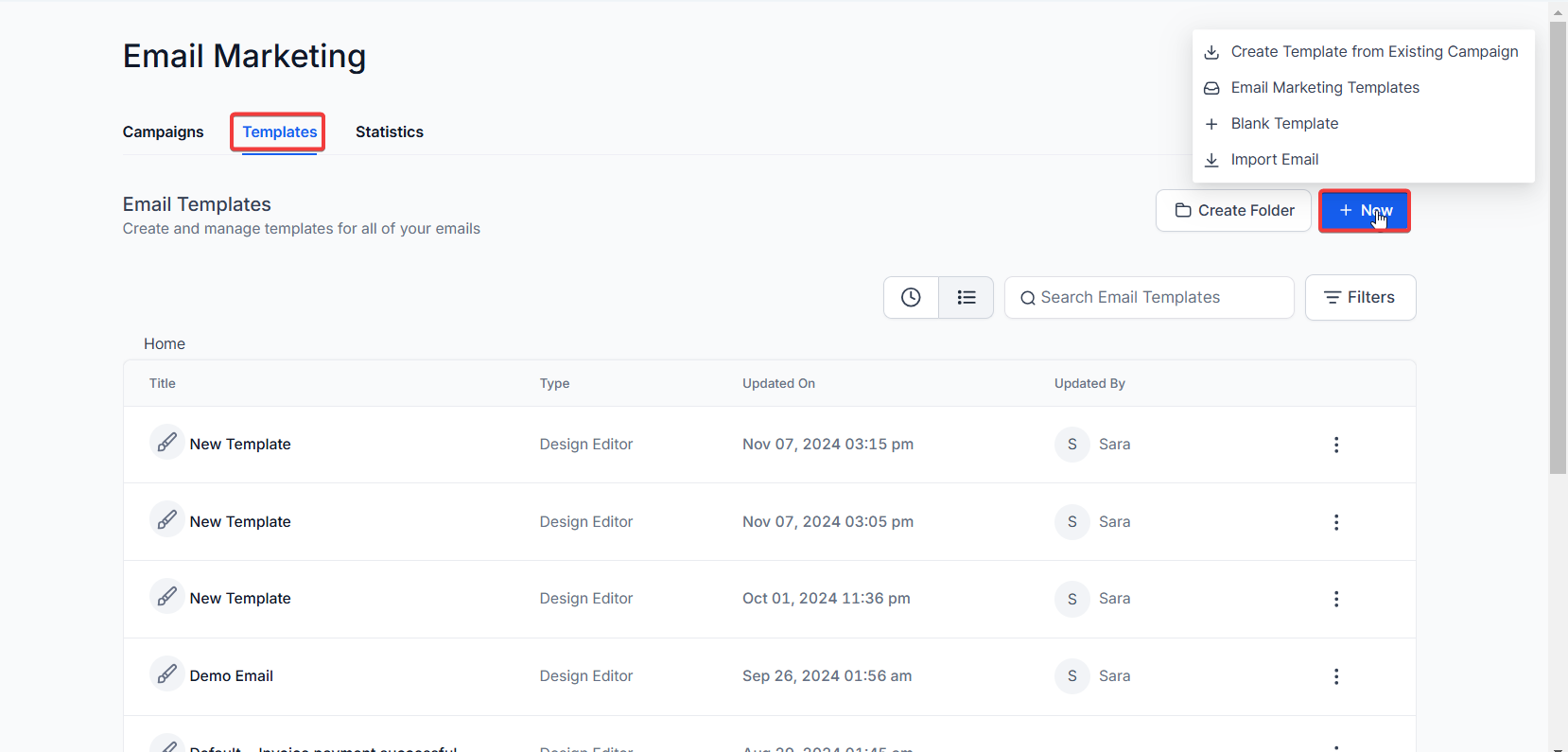
- Edit Contact Details:
- Set up the campaign content and define the contacts you want to target. Once done, Click on “Send and Schedule”

- Access Advanced Conditions:
- Then navigate to the recipient tab.
- Choose the Smart List option and select your desired Smart List.

- Apply Advanced Conditions:
- In the Advanced Conditions field, select the options that best meet your needs. This will ensure that any new contacts added to the Smart List between scheduling and sending will be included in the campaign.

Example:
If a Smart List named “Marketing” has 100 contacts when an email campaign is scheduled for January 30th, and 30 more contacts are added to the Smart List before the scheduled send date, the campaign will automatically update to include the new 30 contacts. As a result, 130 contacts will receive the email on January 30th.
How to Use Advanced Conditions for Tags
- Create a New Campaign:
- Initiate a new campaign using pre-built templates provided by your platform.
- Design Campaign Content:
- Prepare and edit the content for your campaign to suit your target audience.
- Select Tags for Recipients:
- Click on “Send and Schedule,” then go to the recipient tab.
- Choose the option to select contacts based on Tags.

- Apply Advanced Conditions:
- Select the relevant options in the Advanced Conditions field. This setting will include new contacts tagged after the campaign has been scheduled.

Example:
If a Tag named “Digital” is linked to 1,000 contacts when an email campaign is scheduled for January 30th, and 40 new contacts are assigned the tag “Digital” before the send date, all 1,040 contacts will receive the campaign email on January 30th.
Pro Tips:
- Regularly Review Lists and Tags: To maximize the effectiveness of advanced conditions, ensure your Smart Lists and Tags are regularly reviewed and updated according to your audience needs.
- Test Before Sending: Always test your campaigns with the advanced conditions enabled to verify that all new contacts are properly included.
- Limitations: Advanced conditions apply only to new contacts added between the campaign scheduling and sending time. They do not affect contacts removed or updated within the same period.
- Ensure Proper Permissions: Make sure that your account settings allow the use of advanced conditions, as some features may require specific permissions or account configurations.
FAQs
- What are advanced conditions for Smart Lists and Tags?
- Advanced conditions automatically add new contacts linked to Smart Lists or Tags that were created between the time a campaign is scheduled and the time it is sent, ensuring your campaign reaches the most up-to-date audience.
- How do I apply advanced conditions to a campaign?
- When setting up your campaign, go to the recipient tab under “Send and Schedule,” select Smart Lists or Tags, and choose the options in the Advanced Conditions field to include new contacts added after the campaign is scheduled.
- Will advanced conditions add contacts removed from a Smart List or Tag?
- No, advanced conditions only add new contacts. Contacts removed or updated during the time between scheduling and sending are not automatically adjusted.
- Can advanced conditions be used for other recipient types besides Smart Lists and Tags?
- Advanced conditions are specifically designed for Smart Lists and Tags to dynamically update your audience. Other recipient types may not support this feature.
- Are there any special requirements to use advanced conditions?
- You may need specific permissions or account settings enabled to use advanced conditions. Check your platform’s documentation or settings to ensure you have access to this feature.